![Grip-Vertical-Logo-Purple-1.png]](https://support.grip.events/hs-fs/hubfs/Grip-Vertical-Logo-Purple-1.png?width=23&height=34&name=Grip-Vertical-Logo-Purple-1.png)
|
OVERVIEW This article explains how to set up and use the Grip Organiser MCP — a Model Context Protocol (MCP) server that lets an AI assistant securely read your live Grip Engage event configuration on your behalf. Once connected, you can ask an assistant questions like “show me my most recent events” or “what attendee types and meeting dates are set for this event?” and it will retrieve the answer directly from Grip. The connection is scoped to the applications and events your Grip account already has access to, and it is read-only — it retrieves configuration, it never changes it. |
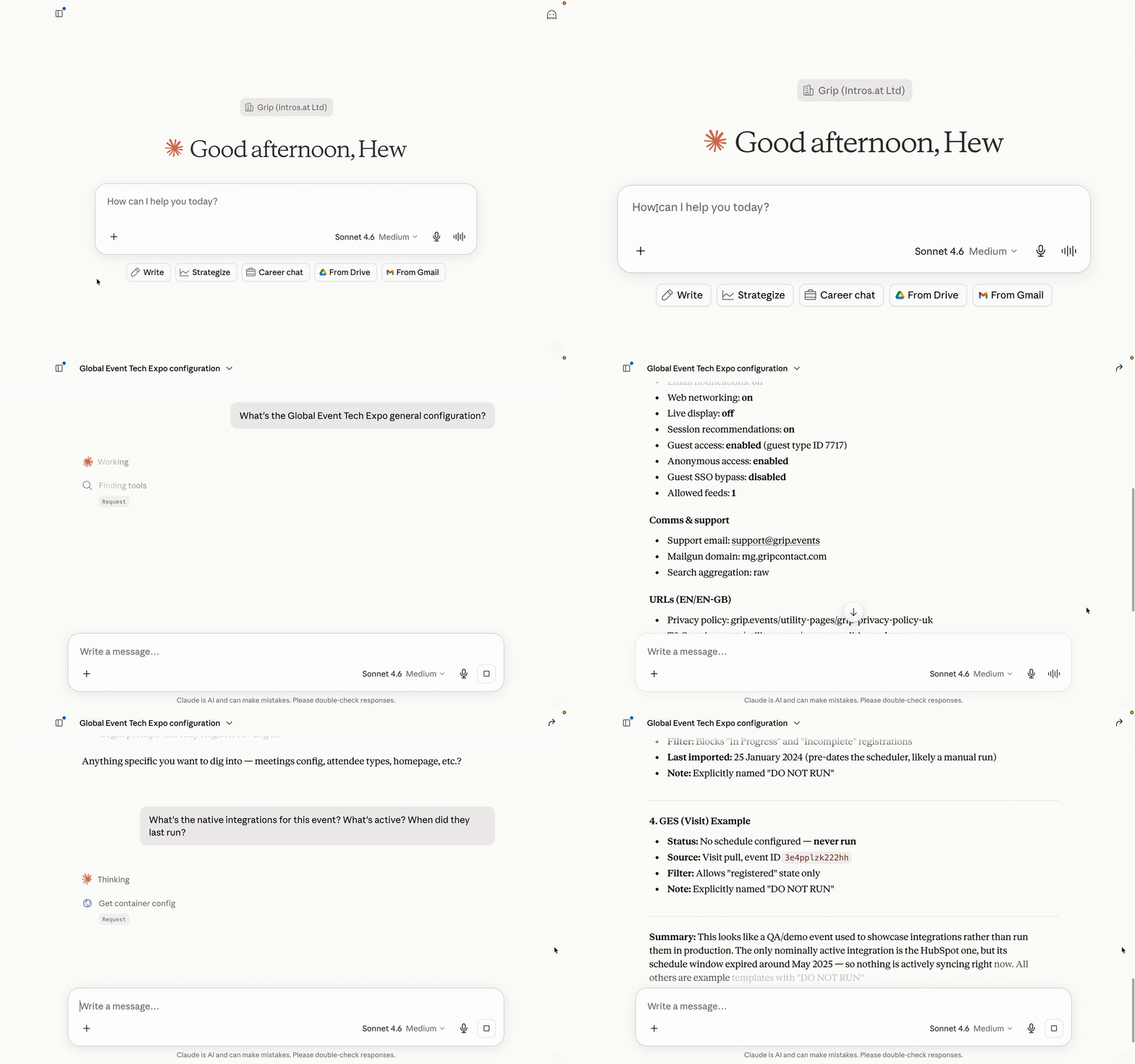
Table of contents
- What is the Grip Organiser MCP?
- Before you begin
- How to connect: Claude, Claude Code, Microsoft Copilot and other clients
- Understanding applications and containers
- Available tools
- Field groups you can request (configuration)
- Insight datasets you can query (analytics)
- Example prompts
- Ready-made skills
- Troubleshooting
- Frequently asked questions
1. What is the Grip Organiser MCP?
What is MCP?
The Model Context Protocol (MCP) is an open standard that lets AI assistants connect securely to external systems. An MCP server exposes a defined set of tools; an MCP-compatible assistant (the client) calls those tools on your behalf when you ask a question.
What does the Grip Organiser MCP do?
It exposes six read tools in two groups:
- Configuration tools read the live setup of an event from the Grip Engage backend: attendee types, permissions, homepage, navigation, meeting dates, integrations, email and notification settings.
- Insights tools query Grip's analytics warehouse, the same data that powers your Grip Insights dashboards: engagement, meetings, connections, badge scans, leads, sessions, MustMeet, feature usage and peer benchmarks, at event, company and participant level, across one event or your whole portfolio.
Instead of clicking through the Admin or exporting a dashboard, you ask. The assistant works out which tools to call, writes any SQL needed, and returns the answer.
What can it not do?
It is strictly read-only. It cannot create, edit, publish or delete anything in your event, and there is no write path.
2. Before you begin
You will need:
- A Grip account with organiser access to at least one application or event. The MCP mirrors your existing permissions.
- An MCP-compatible AI client. Supported today: Claude (web, desktop, mobile), Claude Code, ChatGPT, Microsoft Copilot (via Copilot Studio), Cursor and Gemini. Any client that supports remote MCP servers over streamable HTTP will work.
- The server URL below (only needed if your client does not list Grip in its own directory).
|
SERVER URL https://gateway.grip.events/mcp |
3. How to connect
The flow is the same everywhere: add the Grip connector, authorise it with your Grip login, confirm the tools appear.
Claude (web, desktop, mobile)
The Grip Organiser MCP is an official listing in the Claude Connectors Directory, so there is nothing to paste.
- Open Settings → Connectors and choose Browse connectors.
- Search for Grip and select Grip Organiser MCP.
- Click Connect and sign in with your Grip credentials when prompted.
- Start a new chat and try "list my recent Grip events".
|
TIP: Team and Enterprise plans If you see a Request button instead of Connect, connectors are admin-controlled in your workspace. Requesting sends it to your Claude admins for approval; once enabled, every member can connect their own Grip account. |
Claude Code
Run the following in your terminal, then complete the sign-in when prompted:
claude mcp add --transport http grip https://gateway.grip.events/mcp
Microsoft Copilot (via Copilot Studio)
Microsoft ships several products called Copilot. MCP servers are connected through Copilot Studio, which is where you build the agent your team then uses inside Microsoft 365 Copilot and Teams. The consumer Copilot app (Windows, iOS, web) does not support external MCP servers.
You will need a Copilot Studio licence and, for colleagues to use the finished agent, Microsoft 365 Copilot licences.
- Sign in to Copilot Studio and create a new agent (or open an existing one).
- Go to the agent's Tools page and select Add a tool → New tool → Model Context Protocol.
- Fill in the wizard:
- Server name: Grip Organiser MCP
- Server description: Read-only access to Grip event configuration and event analytics for the signed-in organiser (Copilot uses this to decide when to call Grip, so keep it clear)
- Server URL: https://gateway.grip.events/mcp
- Under Authentication choose OAuth 2.0 → Dynamic discovery and select Create.
- Select Next, then Create a new connection. Sign in with your Grip credentials.
- Select Add to agent. Copilot Studio discovers the six Grip tools automatically.
- Test in the side pane with "List my recent Grip events", then Publish the agent to Microsoft 365 Copilot or Teams so colleagues can use it.
Notes for IT
- Copilot Studio connects to MCP servers through Power Platform connectors, so any Power Platform data-loss-prevention policy in your tenant also applies here.
- For centrally governed rollouts, an admin can instead register the Grip server through Microsoft 365 admin center → Agents → Tools (Bring Your Own MCP server, currently in preview). Once approved it appears in the Copilot Studio tool registry for every maker in the tenant.
- Copilot Studio supports streamable HTTP only; the Grip endpoint is streamable HTTP.
ChatGPT, Cursor, Gemini and other clients
Add a custom or remote MCP server in the client's connector settings, paste the server URL above, and sign in with Grip when prompted. Menu names vary by client; look for "Connectors", "MCP servers" or "Integrations".
|
TIP If your organisation already distributes the Grip Organiser MCP centrally (a managed connector or workspace policy), it may already appear in your client. Skip straight to signing in with Grip. |
4. Understanding applications and containers
Two Grip terms appear throughout:
- Application: your event app or organiser workspace. One application can hold many events.
- Container: a single event, identified by a numeric container_id. "Container" and "event" are used interchangeably.
The typical flow is find the event (search_events returns the application_name and container_id) then read it (get_container for configuration, query_insights for analytics). You rarely need to know IDs yourself; the assistant searches first.
5. Available tools
Your assistant chooses which tools to call, so you never invoke them by name.
Configuration tools (live Grip Engage setup)
`search_events`: find your events. Searches every application your account can access. Each result includes the application name, container ID and start/end dates.
- query (optional): the event name you mentioned. Omit it to list your most recent events.
`list_applications`: list your event apps. Useful when you want to work within a specific app before drilling into its events.
- query (optional): an app or event name to rank the best match first.
`get_container`: read an event's configuration. Fetches live configuration for a single event, returned as the field groups you ask for (see section 6). Defaults to the general overview.
- application_name (required), container_id (required), fields (optional, defaults to ["general"]).
Insights tools (analytics warehouse)
These three run in sequence. The assistant handles all of it; you just ask the question.
`list_insight_datasets`: what data is available. Returns the list of analytics datasets (section 7) so the assistant can pick the right one.
`get_dataset_schema`: how a dataset is built. Returns the columns, join keys, calculated-field formulas and vetted example queries for one dataset. The formulas are the same ones used in Grip Insights, so numbers match your dashboards.
`query_insights`: run the question. Executes a single read-only SQL query against the warehouse. Key behaviours:
- Scoped automatically. Results are limited to the events you can access, regardless of the SQL. Name specific events and it scopes to those; ask a portfolio question ("all my events this year") and it scopes to everything you can see.
- 500-row cap. Queries are aggregated rather than paginated, so ask for rankings, totals and breakdowns rather than raw dumps.
- Batch-loaded. The warehouse loads in batches and can lag live activity by some hours. For an event that is in progress, treat counts as near-real-time, not live. Configuration data from get_container is always live.
6. Field groups you can request (configuration)
When reading an event with get_container, any combination of the groups below can be requested. In practice you describe what you want in plain language and the assistant maps it to the right groups.
|
Field group |
What it returns |
|---|---|
|
general |
Core event details: name, dates, status, key URLs. The default. |
|
general_config |
Broader event settings and onboarding configuration. |
|
simple_container_data |
A lightweight summary of the event. |
|
style_config |
Branding and visual styling (colours, assets, theme). |
|
locale_config |
Languages and translations enabled. |
|
types |
Participant, company and product types configured. |
|
active_count |
Counts of active records by type. |
|
type_permissions |
Which types can meet, message or see one another. |
|
must_meet_config |
MustMeet / Hosted Buyer setup, including groups and phase. |
|
homepage |
Landing-page layout and content blocks. |
|
navigation |
In-app menu and navigation structure. |
|
native_integrations |
Configured native integrations (Grip Pull, A2Z, Cvent etc.) and latest run status. |
|
meetings_config |
Meeting and networking configuration, including dates and slots. |
|
cpf_config |
Custom profile fields and their mapping to attendee data. |
|
email_config |
Sending domain and templates. |
|
notification_config |
Scheduled push-notification campaigns. |
7. Analytics data you can query
The insights tools cover the same data as your Grip Insights dashboards. You describe what you want in plain language; the assistant picks the right dataset.
|
Area |
What you can ask about |
|---|---|
|
Event health & benchmarks |
Headline KPIs per event, comparison across events and editions, results split by participant type, daily activation pacing in the run-up to the event, and how the event compares to Grip's anonymised peer benchmark |
|
People & teams |
Engagement per participant, per exhibitor team and per team representative: meetings, connections, scans, sessions and lead scores |
|
Meetings & connections |
Meeting status and lifecycle, who met whom and who requested it, meeting limits versus actuals, and who connected with whom and when |
|
MustMeet |
Preferences made and received by tier, limits reached, and the meetings that resulted |
|
Lead generation |
Badge scans, lead scores, qualification questions and answers, how each lead was captured (scan, swipe, meeting, session, smart badge) and which lead-retrieval plans exhibitors bought |
|
Sessions |
Session attendance and feedback ratings, verified check-ins at the door, and live or on-demand stream viewing |
|
App usage & devices |
Native app versus web activity by day, and device share across participants |
|
Search & filters |
What participants searched for and which filters they applied, when and where |
|
Content & floorplan |
Home-feed block clicks, most-viewed content, company profile views, engagement with exhibitor products and items, and floorplan clicks |
|
Matchmaking (custom profile fields) |
How custom profile fields are used, offering versus seeking, and match potential per exhibitor team |
|
Advertising |
In-app widget views and clicks |
8. Example prompts
Start with this one to see what is available for your role:
"What data is available from Grip's MCP? How can I use it in my workflow as a [your role]?"
Configuration
- "Show me my most recent Grip events."
- "What attendee types are set up for [event], and how many are active?"
- "Which native integrations are configured for [event], and did the last sync succeed?"
- "Is MustMeet turned on for [event], and which groups are configured?"
Event and networking teams
- "Give me the headline numbers for [event]: participants, activation rate, meetings, connections and badge scans. Compare each to the 2025 edition."
- "Which participant type at [event] has the lowest activation rate? Give me the counts so I can plan a targeted reminder."
- "Rank the buyers at [event] by meeting requests received. What share of demand goes to the top 10%?"
Exhibitor and sales teams
- "Rank the exhibitors at [event] by meetings, connections, badge scans and profile views. Show the top 10 and the 10 least engaged active teams."
- "How did [exhibitor] perform at [event]? Leads captured, meetings held, seniority of the people they met, and how that compares to the average exhibitor."
- "Compare the exhibitor list for [event 2026] against [event 2025]. Who returned, who is new, who didn't come back?"
- "Which exhibitor teams at [event] haven't activated yet, or have no representatives added?"
Marketing, product and insights
- "How much of the activity at [event] happened on the native app versus the web app? Show the daily trend across show days."
- "Which floorplan destinations, sessions and home-feed blocks did attendees click most at [event]?"
- "List all my events starting in [month] and rank them by activation rate and meetings per active participant."
- "How does [event] compare to Grip's peer benchmark on activation, meeting acceptance and connections?"
Data and operations
- "Are there companies appearing under different IDs across editions of [event series]? Flag likely duplicates."
- "Every morning, refresh my MustMeet report for [event] and write it to [sheet]." (Requires a client with scheduled tasks.)
The full library of 18 prompts, with copy buttons for Claude, ChatGPT, Cursor and Gemini, is at grip.events/resources/grip-mcp-prompt-guide.
9. Ready-made skills
Skills are reusable agent instructions built on the Grip Organiser MCP that turn a multi-step job into a single request: post-event exhibitor ROI reports, pre-launch peer reviews, exhibitor retention forecasts, debrief decks, QBRs and more. Browse and install them at eventskills.ai.
10. Troubleshooting
"Access denied" for an event
Your Grip account doesn't have permission for that event or application. Ask your Grip administrator for access, or check you're signed in with the right account. The assistant will not retry against other events; this is expected.
I can't find my event
Confirm you're authenticated with the account that has access, then search by the exact event name. Letting the assistant search first is more reliable than typing IDs by hand.
Analytics numbers don't match what I see live in the Admin
Warehouse data is loaded in batches and can lag live activity. For events in progress, expect a delay of some hours. Configuration data is always live.
Analytics numbers differ slightly from my Insights dashboard
Check the assistant used the dataset's calculated-field formulas (it does when it calls get_dataset_schema first). Ask it to "use the dashboard definition of activation rate" and it will realign.
The result seems truncated
Queries return at most 500 rows. Ask for a ranking, total or breakdown rather than a full list, or narrow the scope to one event or type.
Dates look like large numbers
Some values in the general group are Unix timestamps. Ask the assistant to show them as readable dates; it normally does this automatically. Search results already return readable UTC dates.
11. Frequently asked questions
Q: Do I need to be a developer, or know SQL?
A: No. You ask in plain language. The assistant chooses the tools, writes any SQL, and explains the result. You can ask to see the SQL if you want to check it.
Q: Can it change my event configuration?
A: No. The Grip Organiser MCP is strictly read-only. There is no write path.
Q: What can it access?
A: Only the applications and events your Grip account already has permission to see. Access is verified server-side on every request, for configuration and analytics alike, and analytics queries are force-scoped to your events regardless of what SQL is written.
Q: Which AI assistants work with it?
A: Claude (web, desktop, mobile), Claude Code, ChatGPT, Microsoft Copilot via Copilot Studio, Cursor, Gemini, and any other client that supports remote MCP servers. Claude users can install it directly from the Connectors Directory.
Q: How fresh is the data?
A: Configuration is live. Analytics comes from the warehouse behind Grip Insights and is loaded in batches, so it can lag live activity by some hours.
Q: Can I query across all my events at once?
A: Yes. Portfolio questions ("rank all my events this quarter by activation rate") are scoped automatically to every event you can access. You can narrow to one application if you prefer.
Q: Is my data secure?
A: Requests are authenticated with your Grip login and scoped to your permissions. The connection is read-only and access is checked server-side on every call.
Q: How is this different from the Grip API, webhooks or Insights exports?
A: The MCP is built for AI assistants to read configuration and analytics conversationally. Programmatic and real-time integration is still handled through Grip's APIs and outbound webhooks; scheduled bulk exports remain available through Grip Insights.
Still need help? Event organisers can reach the Grip team via the Grip Help Center or support@grip.events