![Grip-Vertical-Logo-Purple-1.png]](https://support.grip.events/hs-fs/hubfs/Grip-Vertical-Logo-Purple-1.png?width=23&height=34&name=Grip-Vertical-Logo-Purple-1.png)
Currently, we are rolling this feature out via a pilot program to ensure optimal performance and feedback collection.
1. Getting Started: The Pilot Phase
We're running a pilot programme to give Organisers the opportunity to test this new feature.
Privacy Requirements: To participate, organizers must sign a privacy addendum. You will also receive a recommended privacy insert to update your own privacy statements.
Activation: The Grip team will enable the feature for your specific Customer App. Get in touch with your Grip account manager or contact support@grip.events.
2. How does the AI Assistant work?
-
Our AI Assistant leverages your event data in Grip, our Knowledge Base and any content you provide via the Engage Admin portal.
-
It can provide personalized event information based on the participants' actions in-platform, as well generic event information, covering questions from "Which publishing companies would you recommend I meet with?" to "Where can I find the meeting lounge?".
-
The AI Assistant is trained only on your Organisation's data. No data is shared between Organisations.
-
When it does not feel equipped to provide an accurate response to the participant it will encourage the participant to reach out to the support channel, configured via 'Contact Us' in the Engage Admin Portal.
-
The AI Assistant will respond to the participant in the language in which the question was raised (regardless of whether that language is supported on Event App).
- The AI Assistant will retain the participant's chat history until they choose to clear the chat.
- Participants can provide feedback on responses via the thumbs up (good response) and thumbs down (poor response) icons.
- Our AI Assistant is constantly learning and adapting to the information it receives, and it can make mistakes. We continuously evaluate responses to further optimize this feature. The more it is used, the more we can learn!
3. Configuring the AI Assistant
Once enabled for your app, you can manage the AI Assistant through a new tab in the Event Setup page of your admin portal.
.png?width=670&height=360&name=Untitled%20design%20(64).png)
Basic Setup
Enable by Event: You have the flexibility to choose which specific events will use the AI Assistant.
Custom Naming: You can give your AI Assistant a unique name to match your event's branding.
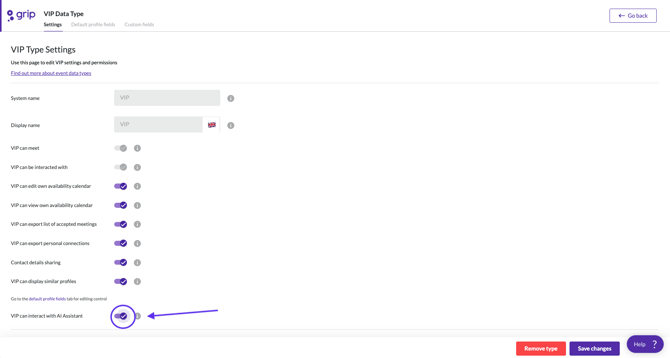
Data Types: You can enable the AI assistant by Data Type. (Data types > Open specific Data type Settings page > Navigate to AI toggle).
Content Sources
To make the assistant more helpful, you can provide it with specific knowledge:
Manual Input: You can add content sources, such as FAQs or additional event information, directly into the admin portal.
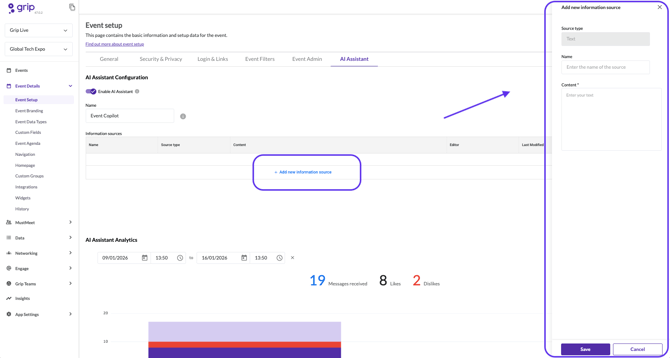
Note: At this stage, content input is kept simple (no URL scraping) to ensure the assistant learns from verified information.
4. User Experience and Visibility
The AI Assistant can be accessed by your attendees in several ways:
Web App Side Panel: By default, the assistant appears in the side panel of the web application.
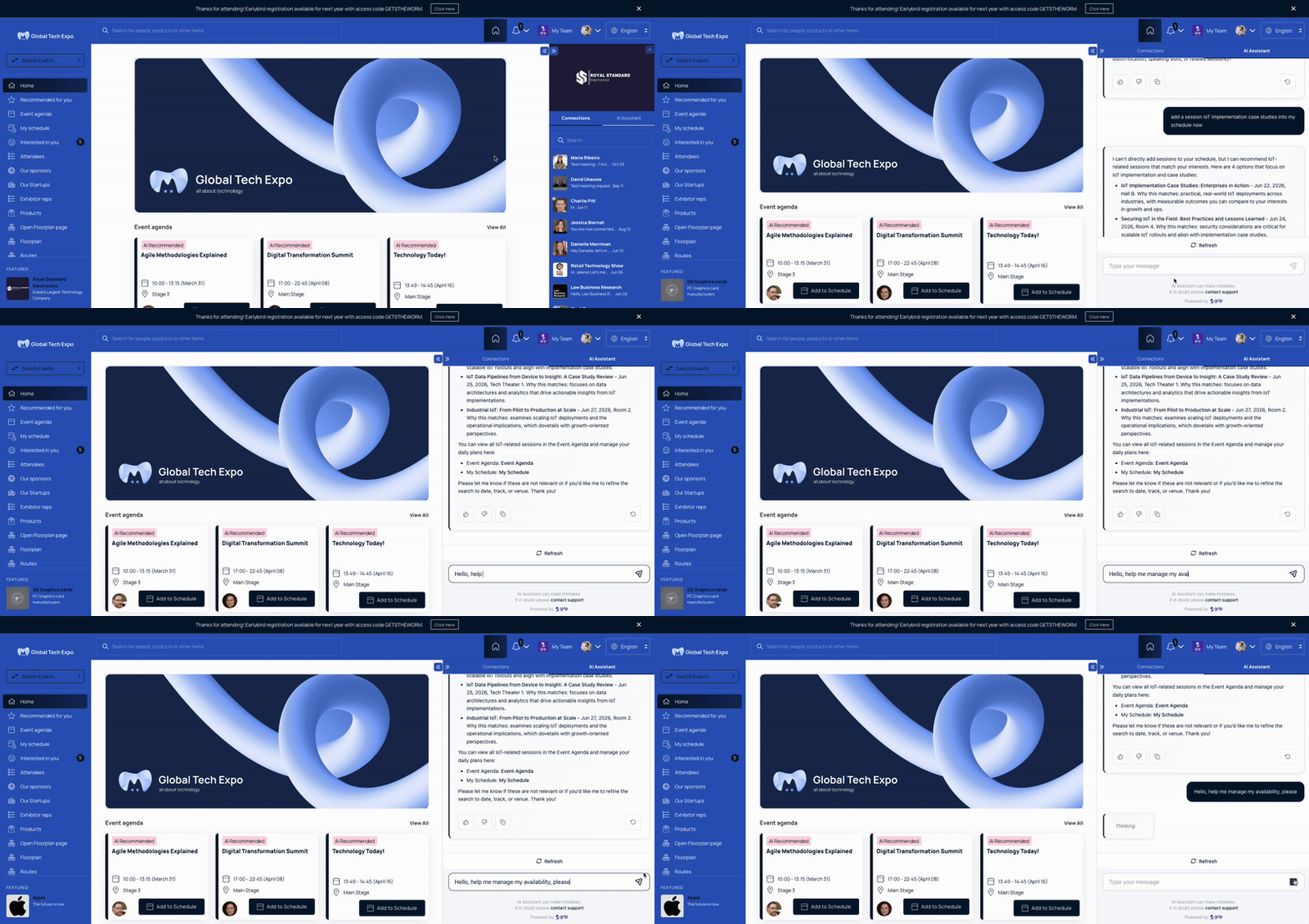
Navigation & Home Page: You can create dedicated Navigation Items or Home Page blocks to direct users to the assistant.
.png?width=670&height=351&name=Template%20for%20product%20launch%20notes%20(81).png)
Mobile App: For mobile users, the Home Page block and Navigation items serve as the primary access points.
.png?width=670&height=351&name=Template%20for%20product%20launch%20notes%20(82).png)
5. Evaluation and Feedback
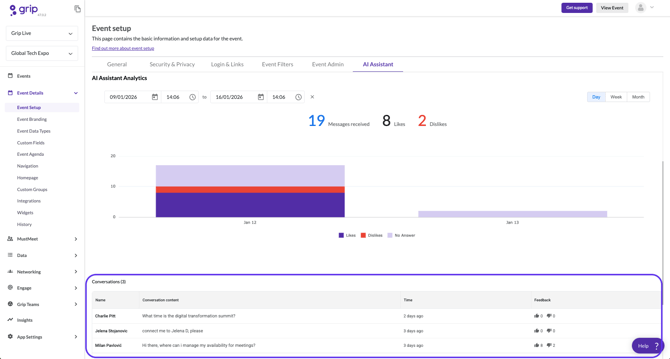
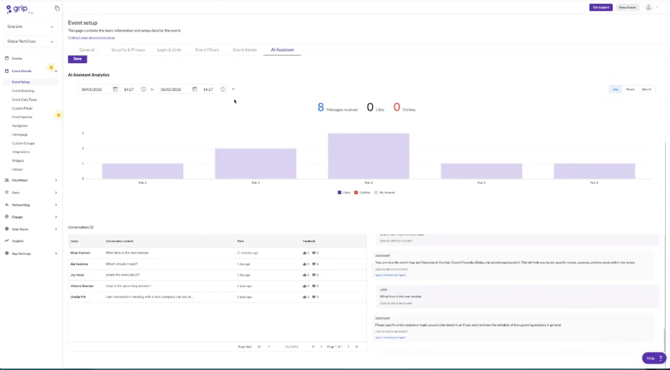
To help you understand how attendees are using the tool, the admin portal provides an evaluation view:
Conversation Review: You can review the conversations users are having with the AI Assistant.
Feedback Tracking: You can monitor participant feedback (good response or poor response) to see how well the AI Assistant is solving attendee challenges.
FAQs
Q: Is there an additional cost for the AI Assistant?
A: No, it is currently not a paid feature. Our goal is to drive engagement and learn from user interactions to improve the platform.
Q: Can I limit who sees the AI Assistant?
A: Yes, during setup, you can define which subgroups of people will have access to the AI Assistant within the application. You can use the Data Type permission as detailed in 'Basic Setup' above.