![Grip-Vertical-Logo-Purple-1.png]](https://support.grip.events/hs-fs/hubfs/Grip-Vertical-Logo-Purple-1.png?width=23&height=34&name=Grip-Vertical-Logo-Purple-1.png)
Overview: The HubSpot integration provides a two-way synchronisation between HubSpot and Grip Manage, primarily focused on sponsors (companies), deals (sponsorships), and contact information.
It enables operations teams to manage sponsorship pipelines inside HubSpot and have those changes reflect almost instantly in Manage through webhook usage. Conversely, changes in Manage can also be synced back to HubSpot via the integration services.
Table of Contents:
- Before you begin configuring the Hubspot integration
- How do you use/configure Hubspot integration?
- Frequently Asked Questions
Before you begin configuring the Hubspot integration
- Administrative access to your HubSpot account to authorize app installations.
- Access to Event Settings within Grip Manage.
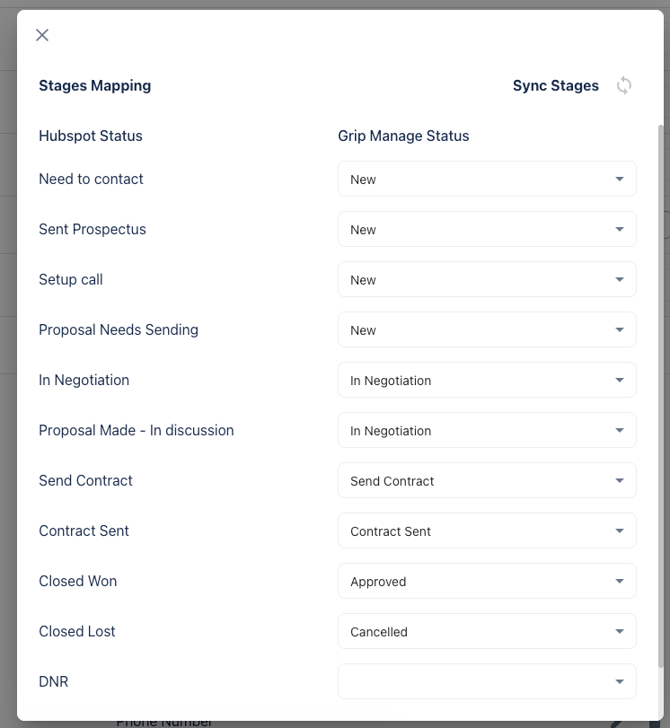
- A clear idea of which HubSpot Deal Stages should match which Grip Sponsorship Statuses.
How to configure the Hubspot integration?
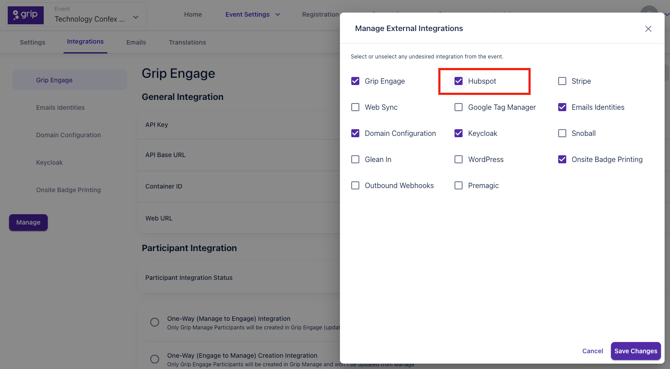
1. Navigate to Event Settings > Integrations > Select the button "Manage" > Select Hubspot on the "Manage External Integrations" modal:
2. Install App & Sync Pipelines
Before enabling the integration, you need to connect the integration between Grip Manage and Hubspot. This is done by clicking the button "Install" next to "Install App & Sync Pipelines".
Doing so will open a new tab to connect to your Hubspot account:
2.1. Connect to your Hubspot Account: Select which account you want to connect to from your Husbpot screen.
2.2. You will be prompted to authorize the connection. Follow the steps to grant permissions for the system to access your HubSpot data.
3. Select the pipeline and mapping
Once authorized, you must tell the webhook which specific sales pipeline to track.
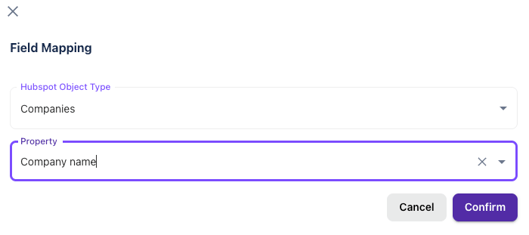
5.3. Input the corresponding Grip Manage and Husbpot fields for the mapping and select the Sync type (this refers to when and how you want these fields to sync)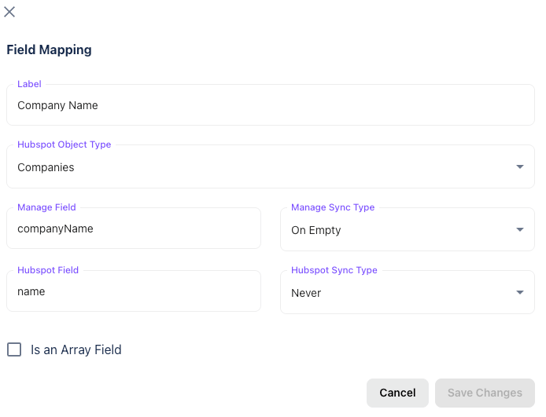
- Review your mappings to ensure accuracy.
- Toggle the switch to Enable the Pipeline
- Toggle the switch to Enable the Integration.
- Click Save to finalize the configuration.
Frequently Asked Questions