![Grip-Vertical-Logo-Purple-1.png]](https://support.grip.events/hs-fs/hubfs/Grip-Vertical-Logo-Purple-1.png?width=23&height=34&name=Grip-Vertical-Logo-Purple-1.png)
In this guide we will cover :
- Getting MyEasyFairs Credentials
- Connecting to MyEasyFairs in the Native Integration Wizard
- Mapping
- Pointers
If you have already set up a successful connection within the engage admin dashboard, and are ready to complete the integration, we recommend reading the primary Native Integration guide.
Getting MyEasyFairs API credentials
To connect to MyEasyFairs, you will need the below credentials, and to whitelist IP addresses :
- API Key
- Event base URL(s)
Q. Why do I need to whitelist IP addresses?
A. Some registration providers, including Visit by GES and LiveBuzz require you add IP addresses that are being used for an integration to an allowlist, this is for security reasons. Below are the 3 IP addresses that Grip use, that you will need to whitelist.
52.18.247.78
34.253.163.181
34.243.38.165
Connecting to MyEasyFairs
This section will provide steps on how to connect to MyEasyFairs. This section assumes that you have already configured API access, have credentials ready, and have whilte listed Grips IP addresses.
When would I use this?
These steps should be taken as your first step to configuring a Native Integration with MyEasyFairs.
How do I use this?
Connect to MyEasyFairs.
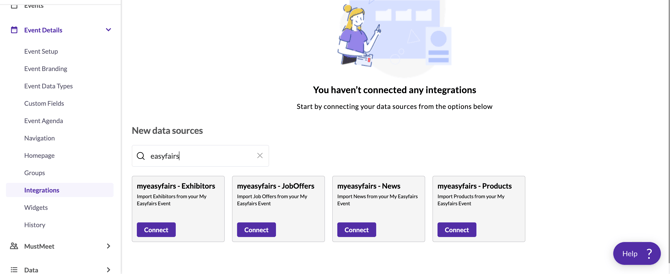
1. Click 'Connect' on the MyEasyFairs integration block. This will either be for the Companies, Job Offers, News or Products data. If you need to map to multiple data types in Grip, you will need to create multiple instances.
2. This will open a new window, where you will need to input your Visit API Key and URL. If the event is multi-language, you can add multiple URLs to map each language. The language code for each will need to be added.
Notes:
1. If en-gb will always be required as default . If the default language is not English for the event, please add the URL preferred and the en-gb language code.
2. Custom profile fields are auto translated when there is pre-defined values, only the default language will be available to map.
3.Summary/ Description, when set up as a free-form custom profile field in Grip will be possible to map in both languages (See mapping)
4. Standard fields (Name, Headline, Company name) are only available in the default language.
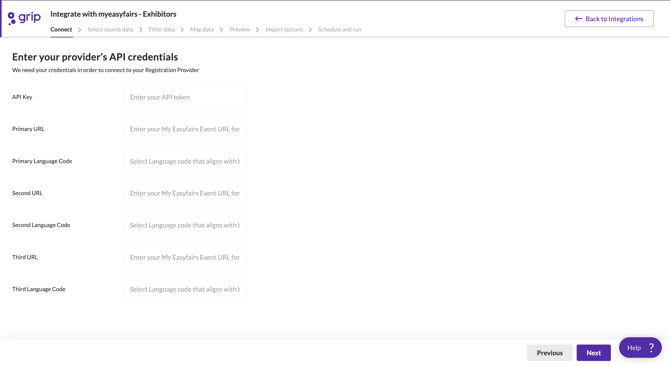
Language codes can be found in the app configuration tab in the engage dashboard.
3. Selecting the source data. Click the down arrow next to “Select data type(s)”. This will present a list of the different types in your Event. Select which types you want to import, and identify which type in Grip this should be directed too.
Note: Multiple Registrant types can be selected, however they can only be imported to one data type in Grip. If you require multiple types, each will need its own integration.
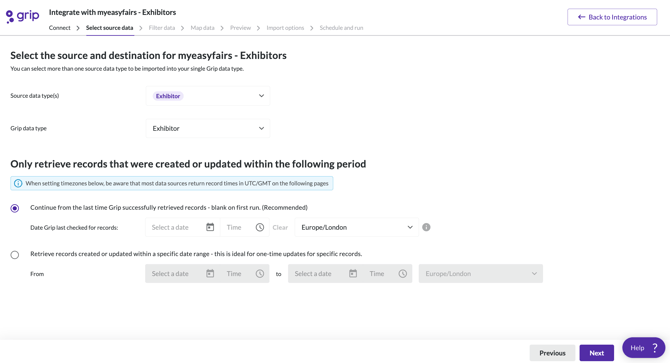
4. Under the section 'Only retrieve records that were created within the following period', select one of the two options:
-
- 'From the last time Grip successfully retrieved records' is the recommended option for integration that will be scheduled to run repeatedly. This will look for any new or updated records.
- From a specific time period. This may be useful for one time updates, or if there is a set date range records need to be imported from,
4. This has now connected the Visit Event to the Grip event, click next and move onto filtering and data mapping.
Recommended next steps :
Map Data
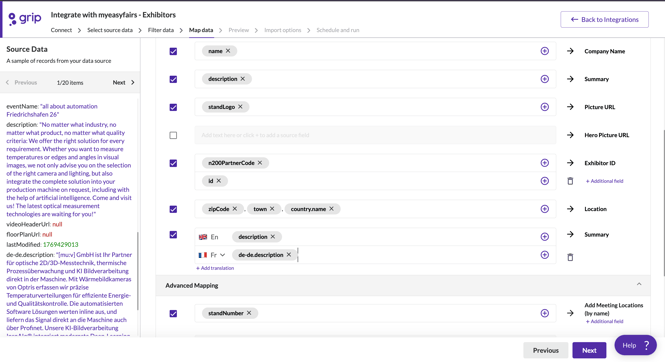
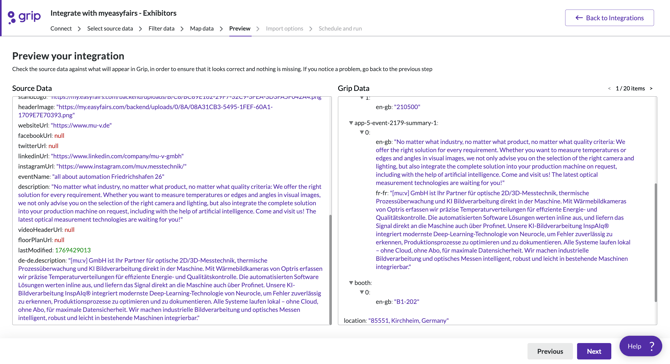
This section will explain how to easily map data from MyEasyFairs. On the left hand side, you will see a sample of records from the source. This will show the data available.
The sample data, will only show the data from primary language URL, with the exception of the "Summary" field, which will show all languages added.
Mapping can be completed in the normal format. Any pre defined custom fields will automatically translated if the values are added in the engage dashboard.
For summary, please ensure the custom profile field is set up as a free-form type, and you should then be able to see "add translation", which will allow the translated field to be added. Any languages added in the connect page, will show a description in the source data here.
For a step by step explanation on mapping, including modifiers available, please see the Native Integration support guide.
Continue to schedule and run the data
Follow the instructions in the main support document to and schedule and run your data.
Pointers
Pointer type: Date in the format epoch timezone is UTC
Pointer works during editing: Yes
Check on creation time or update time: Update, update date is automatically populated with Creation date upon creation of the record
Data type filtering: No
Time window filtering: No, this is implemented on our side, but all records are extracted every time