![Grip-Vertical-Logo-Purple-1.png]](https://support.grip.events/hs-fs/hubfs/Grip-Vertical-Logo-Purple-1.png?width=23&height=34&name=Grip-Vertical-Logo-Purple-1.png)
In this guide we will cover :
If you have already set up a successful connection within the Grip dashboard, and are ready to complete the integration, we recommend reading the primary Native Integration guide.
STOVA API credentials
To connect to STOVA, you will need to provide the following information, which can be found within your Swoogo account.
API Key
Account ID
Host URL
These details should be available within your STOVA account, if you are unsure on where to find these, please reach out to your point of contact.
Connect STOVA
This section will provide steps on how to connect to STOVA. This section assumes that you have already configured API access on STOVA, and have access to the required credentials.
When would I use this?
These steps should be taken as your first step to configuring a Native Integration with STOVA.
How do I use this?
Connect to STOVA.
1. Click on “Connect” for the STOVA Integration block.
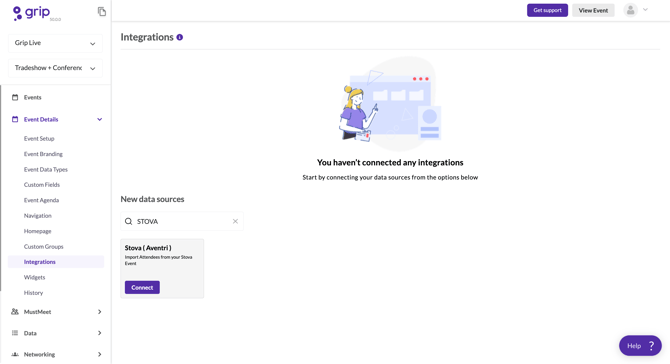
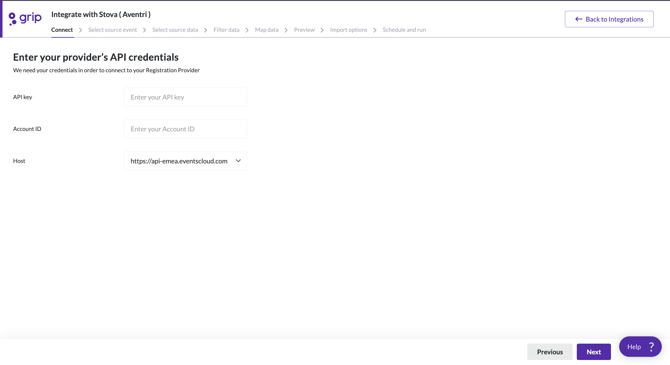
2. This should then allow to start building the integration, with the first step to input your STOVA API credentials. Enter the API Key, Account ID and select the Host URL.
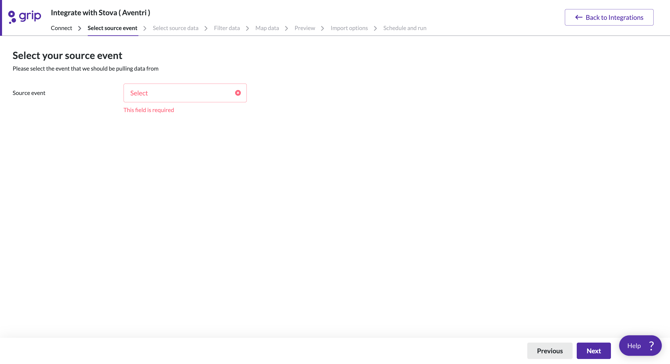
3. After clicking next, you will land on the "Select Source Event" page. From the drop down, select which event in STOVA to connect too. You can only select one source event per integration.
Once you have selected your source event, click next.
4. Select Source data from STOVA. Click the down arrow next to 'Select data type(s)'. This will present a list of the different Registrant types in your STOVA Event.
Multiple registration types can be selected from STOVA to go to one data type in Grip. If additional data types in Grip are set up, they will need additional integrations.
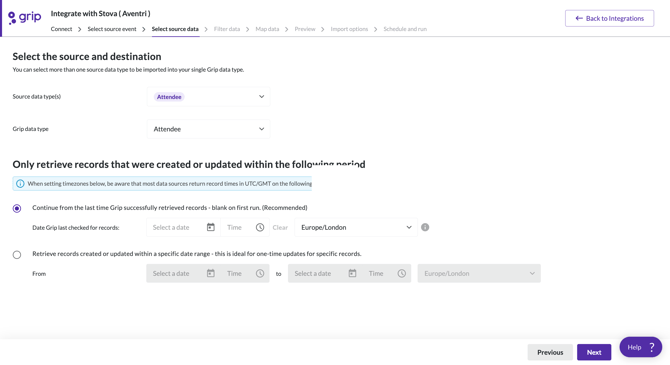
5. Under the section 'Only retrieve records that were created within the following period' (pointers), select one of the two options:
-
- 'From the last time Grip successfully retrieved records' is the recommended option for integration that will be scheduled to run repeatedly. This will look for any new or updated records.
- 'From start time to end time' is the recommended option if you are trying to run an update and want to make sure all records are updated. The recommended start time would be when registration opened and the recommended end time would be today.
6. This has now connected the STOVA Event to the Grip event, click next and move onto filtering and data mapping.
Recommended next steps :
Pointers
Pointer type: Last imported time
Pointer during preview (Filtering, Mapping, Preview): Yes
Check on creation time or update time: Update time
Data type filtering: Yes
Time window filtering: Yes