![Grip-Vertical-Logo-Purple-1.png]](https://support.grip.events/hs-fs/hubfs/Grip-Vertical-Logo-Purple-1.png?width=23&height=34&name=Grip-Vertical-Logo-Purple-1.png)
UTM tracking shows you which marketing campaigns bring in your registrations. If you add UTM parameters to the links you share (in emails, ads, social posts or partner sites), Grip Manage records the source of each registration. You can then see it on the signup, in your signups export and in Insights.
This guide covers how UTM tracking works, how to build tracked links, and where to find and report on the data.
Before you start
- Plan your naming. Agree with your team how you will name sources, mediums and campaigns before you share any links. For example, always use
linkedin, never a mix ofLinkedInandlinked_in. Consistent names keep your reports clean. - Use lowercase. Insights groups values regardless of capitalisation, but your signups export shows them exactly as they were typed in the link.
How UTM tracking works
When someone opens your event site from a link that contains UTM parameters, Grip Manage saves those values for the rest of their visit. When they register, the values are added to their registration.
- Any page works. UTM values are captured on whichever page of your event site the visitor lands on first.
- Browsing is fine. If the visitor looks around the site before registering, the original source is kept.
- The first source is credited. If a visitor opens more than one tracked link in the same visit, the first one is credited.
- Any ticket type counts. If you advertise one ticket and the visitor buys a different one, the purchased ticket is still credited to the original campaign.
Note: UTM tracking works alongside Google Analytics and Google Tag Manager. It does not replace them. It is also separate from Attributes, which you can keep using as you do today.
Building a UTM link
Add the parameters after a ? at the end of your event site URL, separated by &.
|
Parameter |
What it identifies |
Example |
|---|---|---|
|
|
Where the traffic comes from |
|
|
|
The type of channel |
|
|
|
The specific campaign or promotion |
|
|
|
Paid search keywords |
|
|
|
Which link or ad was clicked, when there are several |
|
Example:
https://register.grip.events/v2/registrations/event/xxxxx?utm_source=linkedin&utm_medium=social&utm_campaign=early_bird
Tip: Free tools such as Google's Campaign URL Builder can build these links for you.
Where to see UTM data:
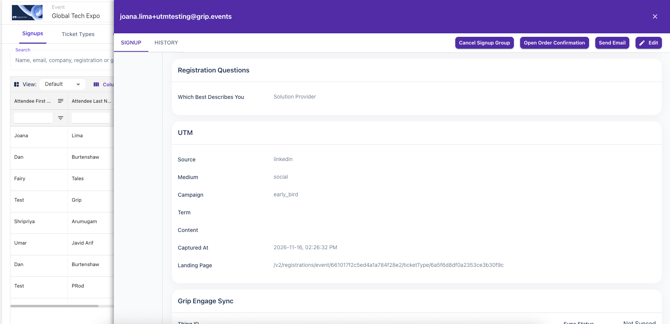
Viewing UTM data on a signup
- Go to Signups and open a signup.
- The UTM values appear on the signup details page, next to that person's attributes and registration question answers.
If a field is empty, that registration had no UTM data for that parameter.
Exporting UTM data
- Go to Signups and download the signups export.
- The UTM columns come after the existing columns, so any reports or spreadsheets built on the export keep working. You'll find:
utm_source,utm_medium,utm_campaign,utm_termandutm_content- When the UTM data was captured
- The landing page the visitor arrived on
Reporting on UTM data in Insights
Insights shows which sources and campaigns drive your registrations and revenue, without exporting any data. To find it, open your event and go to the Insights tab. The UTM reports are in the UTM section.
UTM data updates on the same schedule as the rest of your Insights data, so a new registration appears after the next scheduled refresh.
How values are displayed
- Capitalisation is ignored.
Facebook,facebookandFACEBOOKare counted as one source and shown in lowercase. - Missing values show as (not set). For example, a registration with a source but no campaign appears under (not set) in the campaign breakdown.
- No UTM data yet? If none of your event's registrations have UTM data, the UTM section explains how to add UTM parameters to your links.
Things to know
- No history. UTM data is only recorded for registrations made after this feature went live. Older registrations will not have it.
- Untracked registrations. Registrations from direct visits or untagged links have empty UTM fields in the export and show as No UTM / Direct in Insights.
- Visit counts aren't included. UTM data is saved when someone registers, not when they visit. To see conversion rates (visits compared with registrations), keep using Google Analytics.