![Grip-Vertical-Logo-Purple-1.png]](https://support.grip.events/hs-fs/hubfs/Grip-Vertical-Logo-Purple-1.png?width=23&height=34&name=Grip-Vertical-Logo-Purple-1.png)
Finding email statistics
Navigate to Event Settings > Emails. At the top of the page you will see a "Email logs" button, that will take you to the global email logs page, showing delivery metrics for all enabled templates.
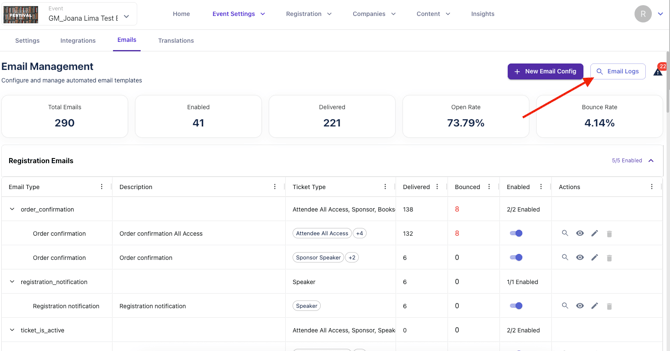
You can also see template specific logs by clicking the "🔍" icon next to each configured template.
Understanding the metrics
Delivered — emails successfully accepted by the recipient's mail server.
Bounced — emails that could not be delivered. Hard bounces (invalid address) and soft bounces (temporary issue) are shown separately where available. A high bounce rate may indicate stale email addresses in your registration data.
Opened — recipients who opened the email. Note: open tracking depends on image loading; some clients block this, so counts may be understated.
Clicked — recipients who clicked a tracked link in the emails
Troubleshooting high bounce rates
If you are seeing a high proportion of bounced emails: verify your sending domain is correctly set up (see How do I set up Email domain in Grip Manage); check that registration email addresses in your signup data are valid; and contact Grip Support if the issue persists after domain verification.
Frequently Asked Questions
Can I export the logs? Yes, you can download a CSV with the logs.